A cosy floating island with a tiny lighthouse and cottage above a sea of clouds at sunset, soft global illumination

Blender workstations for modelling, simulation and Cycles

Blender asks different things of the machine at each stage: the processor for modelling, Geometry Nodes and simulation bakes, and the GPU and its memory for Eevee and Cycles. We build, set up and test each workstation so every stage of your work runs smoothly from day one.

Chat with our team

Recommended configurations

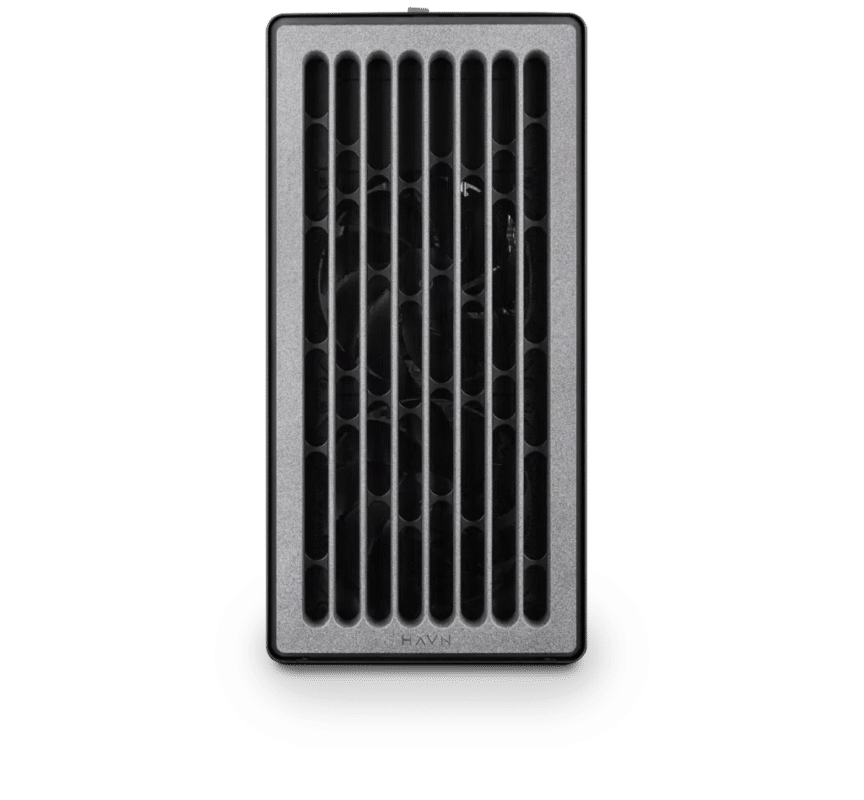
Front on view of Renderboxes Electron Early 2026 Workstation
Standard

Blender – Standard

Electron · NVIDIA RTX PRO 4500 32GB

One artist: modelling, Eevee and Cycles on a 32GB card, with a 16-core processor for simulations and CPU work.¹

  • CPU: AMD Ryzen 9 9950X3D
  • RAM: 128GB DDR5 6000 2x64GB
  • PCIe 1 (x16): NVIDIA RTX PRO 4500 Blackwell 32GB
  • NVMe Storage (Gen 5.0): M.2 NVMe Gen 5 2TB
  • Operating System: Microsoft Windows 11 Pro

£11,537.75 inc VAT

Built to order · dispatched in 21 working days

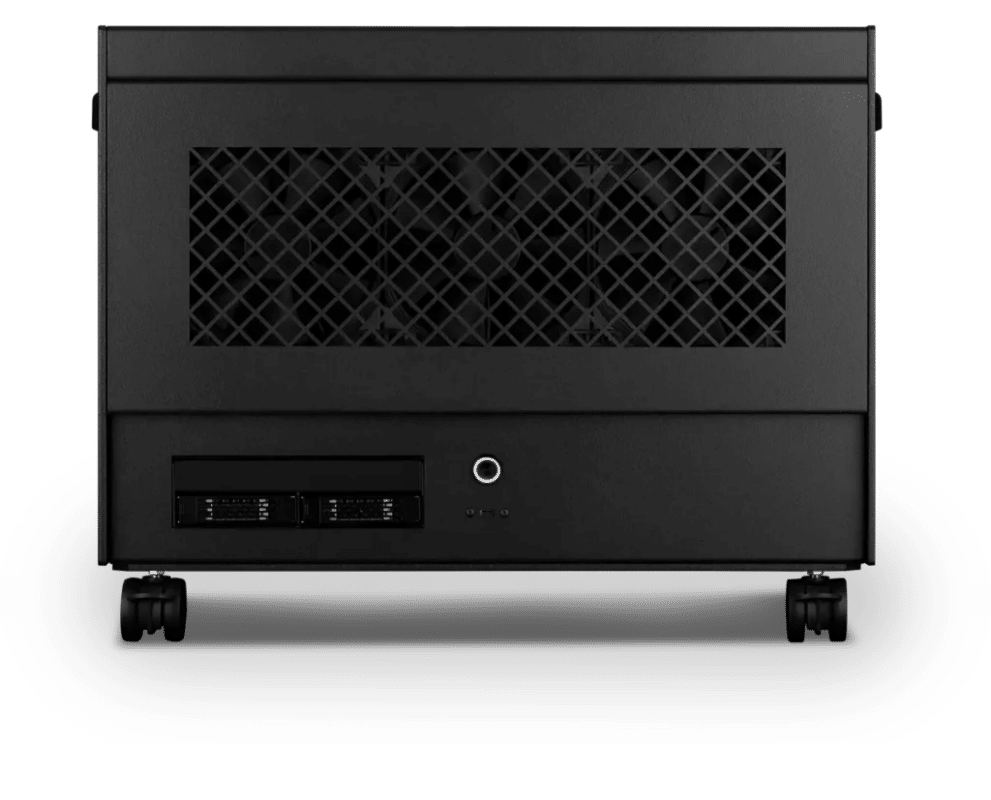
Front on view of Renderboxes Atom Workstation 2 GPUs in one workstation
Heavy

Blender – Heavy

Atom · 2× NVIDIA RTX PRO 5000 48GB

Freelancers with heavier scenes: two 48GB cards render Cycles together, with half as much again GPU memory per card as Standard.²

  • Motherboard: Gigabyte TRX50 AI TOP (4 × PCIe slots)
  • CPU: AMD Ryzen Threadripper 9960X 24 Core
  • RAM: 4 × 64GB RDIMM ECC DDR5 6400
  • PCIe slots (16x): 2 × NVIDIA RTX PRO 5000 Blackwell 48GB
  • NVMe M.2 Drives (Gen 5): M.2 NVMe Gen 5 4TB
  • Operating System: Microsoft Windows 11 Pro

£35,054.00 inc VAT

Built to order · dispatched in 21 working days

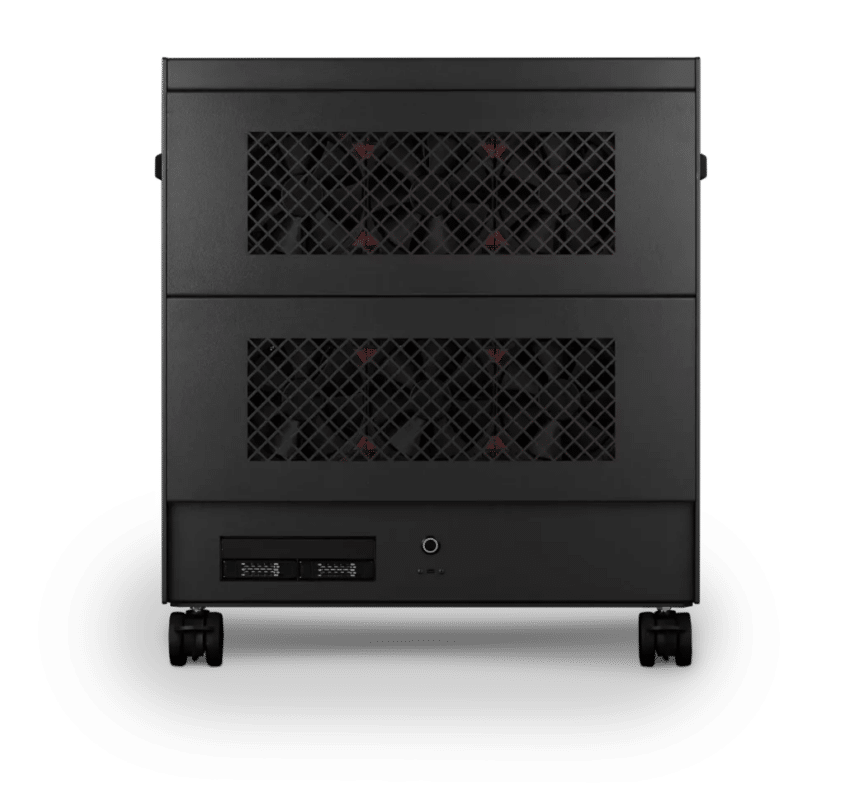
Front on view of Renderboxes Nano Pro 4 GPUs in one workstation
Studio

Blender – Studio

Nano Pro · 4× NVIDIA RTX PRO 5000 48GB

Studios: four 48GB cards, each on a full Gen5 x16 link, for animation renders. Twice the GPUs of Heavy.²

  • CPU: AMD Ryzen Threadripper PRO 9965WX 24 Core
  • RAM: 8 × 64GB RDIMM ECC DDR5 6400
  • GPU options: 4 × NVIDIA RTX PRO 5000 Blackwell 48GB
  • NVMe M.2 Drives (Gen 5): M.2 NVMe Gen 5 8TB
  • Operating System: Microsoft Windows 11 Pro

£71,737.02 inc VAT

Built to order · dispatched in 21 working days

Each recommended system is a starting point. Select Customise to add components or change the specification before you order.

Blender logo

What is Blender?

Blender is free, open-source 3D software that covers the whole pipeline in one application: modelling, rigging, animation, simulation, rendering, compositing, motion tracking and video editing. It is a community project coordinated by the Blender Foundation, and professionals and studios use it for animation, game assets, motion graphics, TV shows, commercials and feature films.

Blender has two built-in render engines. Eevee is a real-time engine that renders on the GPU, for look development, previews and final frames. Cycles is a path tracer for physically based results; it renders on the CPU or the GPU, and on NVIDIA RTX cards it uses OptiX hardware ray tracing.

That mix is why the right machine depends on how you spend your day. The processor prepares geometry, evaluates Geometry Nodes and bakes simulations, and the viewport, Eevee and Cycles lean on the GPU and its memory.

Blender is a trademark of the Blender Foundation. Renderboxes is not affiliated with or endorsed by the Blender Foundation.

Why artists choose Blender

  1. Free and open source

    Free to use for any purpose, including commercial work, under the GNU GPL, so a studio can add artists and render machines without licence costs.

  2. The whole pipeline in one app

    Model, rig, animate, simulate, render and composite in one application.

  3. Two render engines

    Eevee for real-time previews and final frames, Cycles for physically based, photoreal images.

Diagram: Model, then Animate, then Geometry Nodes, then Look dev, then Render, then Composite

How a Blender shot runs

A typical Blender shot moves through these stages. Each stage loads a different part of the machine: the processor for building and preparing geometry, the GPU for viewing and rendering.

  1. Model and sculpt

    Mesh editing and modifiers are evaluated on the processor. In the viewport, Blender can use the GPU to subdivide meshes under certain circumstances.

  2. Animate

    Rigs and deformations are evaluated every frame, and the processor prepares the geometry before the GPU draws it.

  3. Build and simulate

    Geometry Nodes modifies geometry with node-based operations, and the Blender manual says its performance depends especially on the processor and memory bandwidth. Fluid and smoke simulations are baked to a cache on disk so they need not be recalculated.

  4. Light and look develop

    The viewport and Eevee render on the GPU. Eevee uses one card and the same shader nodes as Cycles, so materials preview in real time.

  5. Render with Cycles

    Cycles renders on every GPU you select. Each card can only access its own memory, so memory per card sets the largest scene that renders without falling back to system memory.

  6. Composite and output

    The compositor runs on the processor or the GPU, chosen in the render settings. Fast NVMe storage keeps image sequences and caches moving.

What each part of the machine does for Blender

GPU memory

Holds the scene's geometry and textures while Cycles renders. It sets the largest scene each card renders at full speed.

When the GPU memory is full, Blender automatically tries to use system memory. The scene still renders, with a performance impact.

Matters most

Number of GPUs

Cycles renders on every GPU you select, so each card adds rendering capacity to the same frame.

Memory does not add together across cards: each card can only access its own memory. Eevee uses one card.

Matters a lot

Processor

The processor prepares geometry before each Eevee frame and drives Geometry Nodes, simulation bakes and Cycles CPU rendering, which by default uses one thread per logical processor.

Our Standard build uses a 16-core desktop processor. The Studio build's workstation processor adds the PCIe lanes that give each of four GPUs a full Gen5 x16 link.

Matters a lot

System memory

Holds simulation caches, high-resolution sculpts and the scene while it is prepared for rendering.

Blender recommends 32GB.¹ The manual notes that a fluid simulation's memory use can rise steeply as mesh detail goes up.

Matters

Fast storage

Fluid simulations are baked to a cache directory on disk, alongside texture libraries and image sequences.

Fast NVMe drives write simulation bakes and load scenes and caches without holding you up.

Matters

Chart: Blender minimum 2GB; Blender recommended 8GB

GPU memory: Blender's guidance and our builds

Blender's published requirements are a floor for running the software, not for rendering production scenes. Cycles needs the scene's geometry and textures in the memory of each card.

Our builds start at 32GB per card, four times Blender's recommended 8GB.¹

1. Blender's published system requirements, November 2026. Actual use depends on geometry, texture resolution and render settings.

What artists use it for

Commercials

Photoreal product shots and animated spots rendered in Cycles.

Cycles renders on every selected GPU, and each card holds the scene.

Motion graphics

Procedural animation built with Geometry Nodes.

Geometry Nodes performance depends especially on the processor and memory bandwidth.

Animation and short film

Character work from rigging to final frames.

The processor evaluates rigs every frame; several GPUs render the shots in Cycles.

Visual effects

Fluid, smoke and fire simulations composited into live action.

Bakes are written to a cache on disk, and their memory use grows with detail.

TV and feature films

Shots and sequences rendered at production quality.

GPU memory per card sets the largest scene Cycles renders without falling back to system memory.

Game assets

Models, sculpts and texture bakes for game engines.

Eevee renders materials in real time, with the same shader nodes as Cycles.

Which part of the machine each Blender task uses

Blender is several kinds of software in one. This is where each task does its work, from the Blender manual. 1. Published guidance from the software maker, or approximate figures, not Renderboxes tests. Actual needs depend on your scenes. 2. Comparisons are of GPU memory or the number of GPUs between Renderboxes builds, not speed.

Does its work on From the Blender manual
Modelling and modifiers The processor The GPU can subdivide meshes in the viewport
Geometry Nodes The processor Depends especially on processor and memory bandwidth
Fluid and smoke simulation A baked cache on disk Memory use rises with mesh detail
Viewport and Eevee One GPU Eevee has no multiple-GPU support
Cycles on the GPU Every selected GPU Each GPU uses only its own memory
Cycles on the CPU Every processor thread Automatic mode uses all logical processors
Compositor Processor or GPU Chosen in the Performance panel

Tell us what you need for Blender

Share your Blender version, whether you render with Cycles or Eevee, your current hardware and the scenes that slow you down. We will review the right configuration and confirm availability before you order.

This field is for validation purposes and should be left unchanged.

Frequently asked questions

Eevee is real time and suits look development, stylised work and fast previews. Cycles is a path tracer and suits photoreal stills and animation. Both can render on the GPU, so the same machine serves either; Cycles is the one that renders on several GPUs, while Eevee uses one.

Yes. Cycles supports hybrid rendering on the processor and the GPUs together, with OptiX since Blender 2.92. Enable the processor alongside the cards in Preferences, System.

The Blender manual says Geometry Nodes performance depends especially on the processor and memory bandwidth. If procedural or simulation work is a large part of your day, tell us and we will weight the build towards cores and memory.

The Blender manual says the only complete solution to an unresponsive interface during rendering is a dedicated GPU for rendering and another for the display. On multi-GPU builds we can leave one card for the display; ask us when you order.

You choose the cards in Preferences, System, and Cycles renders on all of them. The Blender manual suggests using one card for display and the others for rendering (Blender manual). Each card generally needs to hold the whole scene.

Yes, through HIP on AMD cards with the RDNA1 architecture or newer. These configurations use NVIDIA cards, which render through CUDA or OptiX; OptiX uses the hardware ray-tracing acceleration in RTX cards.

Each GPU can only access its own memory, so adding cards does not add room for the scene. When the GPU memory is full, Blender automatically tries to use system memory, which has a performance impact. If your scenes outgrow 32GB, ask us about 96GB cards.

The Blender manual gives no core count for fluid simulation; it notes that baking takes a lot of compute power and that memory use can rise steeply with mesh detail. If fluids are a large part of your work, tell us and we can fit a 96-core processor in place of the Studio build's 24-core processor.

Standard suits a single artist on a budget. Heavy suits a professional or freelancer who wants two 48GB cards for Cycles rendering. Studio is for a studio or team, with four cards in one workstation.

Talk to someone at Renderboxes

Not sure which build is right? Speak to our team and we will help you choose the right configuration for your work.

Phone icon

Request a callback

Book a time that suits you and one of our team will call you.

BOOK A CALL
Mail icon

Send us an enquiry

Tell us what you are working on and we will recommend a configuration.

Contact us
Fast response team icon

Customer care phone

Call us for instant support

0800-955-RNDR (7637)

Mon-Fri, 9 AM - 5 PM